

How to Use Page Match to Seamlessly Switch Between a Book and Its Audiobook on Spotify
Today, Spotify announced two new updates to give book lovers a more personalized and flexible way to enjoy stories: the ability to purchase physical books via a partnership with Bookshop.org and our new Page Match feature. Here, we’re diving deeper into how you can use Page Match to bridge physical and audio reading.
This first-of-its-kind feature lets you switch between a print book or e-book and its audiobook counterpart with a quick scan of your mobile phone camera. It’s designed to help books adapt to your schedule, not the other way around, turning more moments throughout the day into opportunities to stay engaged with a great story.
How it works
Page Match is currently rolling out and will be available on most English-language titles by the end of February for all Spotify audiobook listeners on iOS and Android.
-
- Premium subscribers and Audiobook+ plan members can use the feature with their monthly allocation of audiobook listening hours.
- Free users can use it with individual audiobooks they’ve purchased through Spotify.
To get started with Page Match on supported titles, just make sure your Spotify app is updated.
From book to audiobook
When you’re so engrossed in a story that you don’t want to put your book or e-reader down, Page Match lets you continue listening right where you left off reading.
-
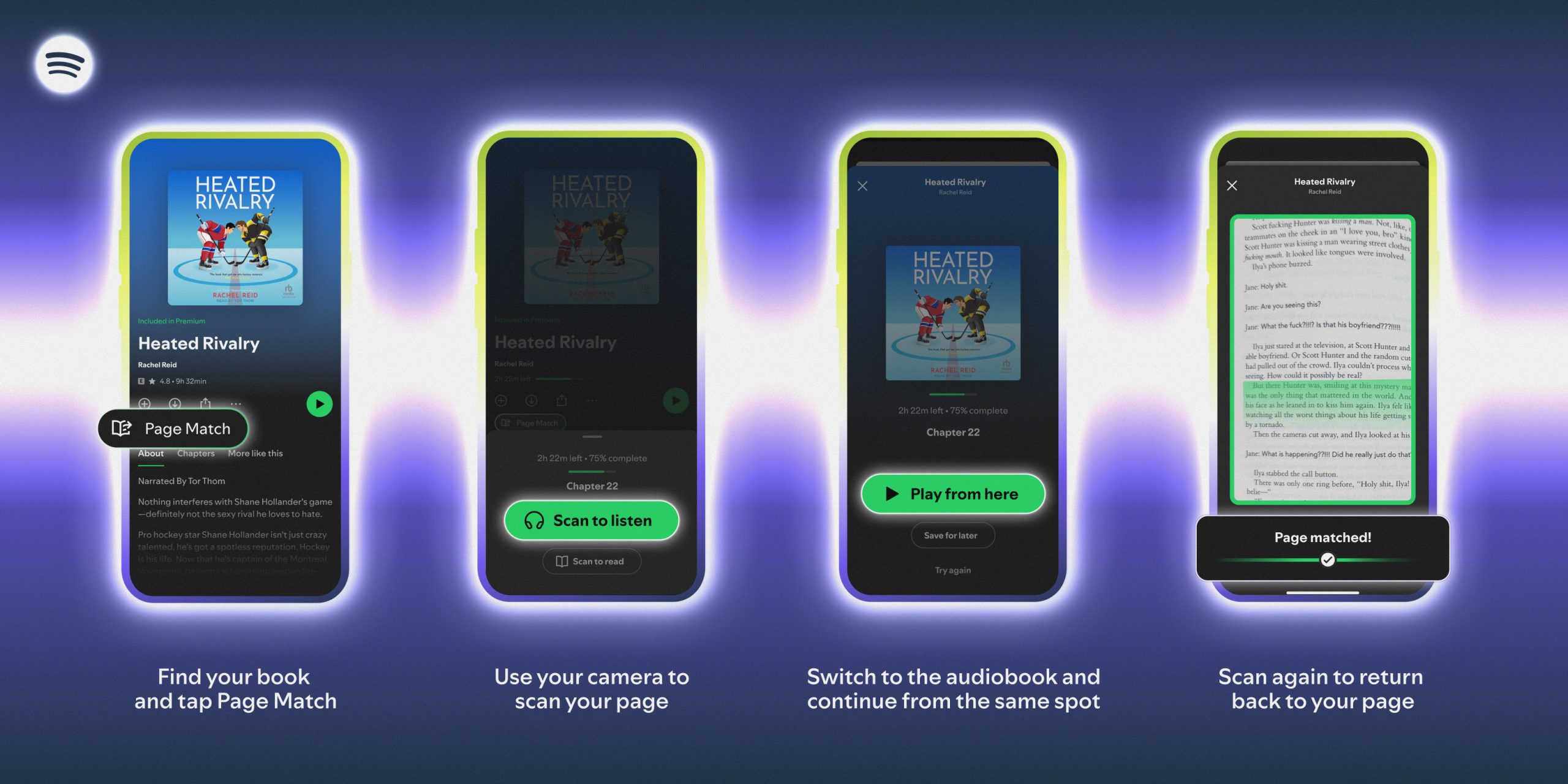
- For supported titles, find the audiobook in the Spotify mobile app and tap the Page Match button.
- Press Scan to listen.
- Allow camera access in the app and simply scan the page you’re currently reading.
- Spotify will match the page to the corresponding moment in the audiobook and give you the option to Play from here or Save for later.
- If the page can’t be matched, the app will prompt you to try again.
If the title has audiobook Recaps enabled (you’ll see a Recap button), Page Match and Recaps are available to work together. Recaps offer short audio summaries tailored to your most recent listening point to give you a refresher on the story so far.
From audiobook to book
When you want to switch from listening to reading, the process is just as easy.
-
- Open the audiobook in the Spotify mobile app and tap the Page Match button.
- Select Scan to read.
- Scan any page in your book or e-reader so Spotify can orient itself.
- Spotify will then guide you to the correct spot based on where you stopped listening, telling you whether to flip forward or backward to find the exact passage where you should resume reading.
By removing the friction between reading and listening, Page Match is the latest way Spotify is reimagining the book experience—helping you stay lost in a story, no matter how or when you choose to engage.


